When QuickBooks not working after update, it can interrupt essential accounting tasks such as invoicing, payroll, reconciliation, reporting, and accessing company files. You may find that QuickBooks Desktop does not open, freezes during startup, becomes unresponsive, crashes, or opens briefly before closing.
An update does not always mean that your company file is damaged. Problems can occur because of damaged program components, Windows configuration changes, antivirus interference, licensing information, installation problems, or conflicts with other applications.
This guide explains the common reasons QuickBooks may stop working after an update and provides practical troubleshooting steps to help identify and resolve the problem.
Why is QuickBooks Not Working After an Update?
There can be several reasons QuickBooks stops working after an update. Common causes include:
- Damaged or incomplete QuickBooks program files
- Problems with the QuickBooks installation
- Outdated or incompatible Windows components
- Antivirus or firewall software blocking QuickBooks
- Licensing or entitlement data problems
- QuickBooks background processes remaining active
- Company file or network-related problems
- Conflicts with other applications
- Unsupported QuickBooks versions
- Windows security or configuration changes
Identifying whether the problem affects the QuickBooks application itself or only a particular company file is an important first step.
How to Fix QuickBooks Not Working After Update
1. Restart Your Computer
Start with a simple restart. A QuickBooks update may require Windows to restart before all program components are loaded correctly.
Close QuickBooks and other accounting applications, restart Windows, and then try opening QuickBooks Desktop again.
If QuickBooks starts normally after restarting, check your company file and make sure your accounting information is accessible before continuing with normal work.
2. Run Quick Fix My Program
Quick Fix my Program can help when QuickBooks is freezing, not responding, or refusing to start after an update.
You can access this utility through QuickBooks Tool Hub.
Follow these steps:
- Close QuickBooks Desktop.
- Open QuickBooks Tool Hub.
- Select Program Problems.
- Choose Quick Fix my Program.
- Allow the tool to complete.
- Reopen QuickBooks Desktop.
- Try opening your company file.
This is a useful early troubleshooting step because it focuses on QuickBooks program processes before you make more significant changes to the installation.
3. Check Whether the Company File Is the Problem
Sometimes QuickBooks itself works correctly, but a specific company file has a problem.
Try opening QuickBooks without immediately opening your company file. If the application opens successfully, attempt to open a sample company file or another company file if one is available.
If other files open but your primary company file does not, the issue may be related to the company file, its location, permissions, or network configuration rather than the QuickBooks application.
Do not immediately assume that reinstalling QuickBooks will repair a damaged company file.
4. Check Antivirus and Security Software
Security software can occasionally interfere with accounting applications after software or Windows updates.
Check your antivirus or security software for:
- Quarantined QuickBooks files
- Blocked applications
- Firewall restrictions
- Recently changed security rules
- QuickBooks-related alerts
If legitimate QuickBooks files have been blocked, follow your security software's procedure for restoring or allowing them.
Avoid permanently disabling antivirus protection simply to make QuickBooks work. If security settings are managed by your company, consult the appropriate IT administrator before changing them.
5. Repair the QuickBooks Installation
If QuickBooks still does not work, the update may have left damaged or incomplete installation components.
Windows provides repair options for installed programs that can help restore damaged application files.
Before performing a repair:
- Close QuickBooks.
- Back up your company files if possible.
- Open Windows settings or Control Panel.
- Locate QuickBooks Desktop in the installed applications.
- Choose the available repair option.
- Follow the instructions.
- Restart Windows.
- Test QuickBooks again.
6. Use the QuickBooks Install Diagnostic Tool
Installation-related problems can occur when QuickBooks program components, Microsoft components, or installation files do not function correctly.
QuickBooks Tool Hub provides an Installation Issues section containing troubleshooting utilities such as the QuickBooks Install Diagnostic Tool.
A typical process is:
- Open QuickBooks Tool Hub.
- Select Installation Issues.
- Choose QuickBooks Install Diagnostic Tool.
- Allow the diagnostic process to finish.
- Restart your computer.
- Open QuickBooks again.
Diagnostic tools can take some time to complete, so avoid interrupting the process.
7. Check Windows Components
QuickBooks Desktop relies on Windows components that can sometimes become damaged or misconfigured.
Depending on the specific problem, Microsoft .NET Framework or MSXML may need to be repaired or reinstalled.
Because these are Windows-level components, avoid making changes blindly. If you're unfamiliar with Windows administration, getting assistance from an IT professional can help prevent additional system problems.
8. Check for Company File Problems
If QuickBooks opens but your company file does not, the issue may be associated with the file itself.
The QuickBooks File Doctor Download resource explains how File Doctor can be accessed through QuickBooks Tool Hub for supported company-file and network-related problems.
Before attempting repairs, create a current backup whenever possible.
File Doctor does not repair every type of company-file problem. If it cannot resolve the issue, the next step depends on whether the problem involves data integrity, file corruption, networking, or another configuration issue.
9. Reinstall QuickBooks as a Last Resort
If diagnostic and repair methods fail, reinstalling QuickBooks may be necessary.
However, reinstalling the application is different from deleting your company data. Make sure you know where your .QBW company files and backup files are stored before making major changes.
A safer sequence is:
Backup → Diagnose → Repair → Test → Reinstall if necessary
Avoid deleting company files simply because the QuickBooks application is not opening.
What if QuickBooks Opens and Then Closes?
QuickBooks opening briefly and then closing can point to several different causes, including:
- Damaged program files
- Licensing information problems
- Antivirus interference
- Windows component issues
- Conflicting background applications
- Installation problems
Start with Quick Fix my Program and then work through the appropriate troubleshooting steps instead of immediately reinstalling the software.
How to Prevent QuickBooks Update Problems
You can reduce the possibility of update-related interruptions by following a consistent maintenance process.
Before updating:
- Back up your QuickBooks company file.
- Confirm that your Windows environment is supported.
- Close unnecessary applications.
- Schedule major updates outside busy accounting periods.
- Make sure you have sufficient system permissions.
- Avoid interrupting an update once it has started.
After updating:
- Open QuickBooks and test the application.
- Open the company file.
- Check important reports and transactions.
- Confirm that connected features work correctly.
- Verify multi-user access if your business uses multiple users.
This approach can help identify problems before they interfere with payroll, invoicing, reconciliation, or other time-sensitive accounting work.
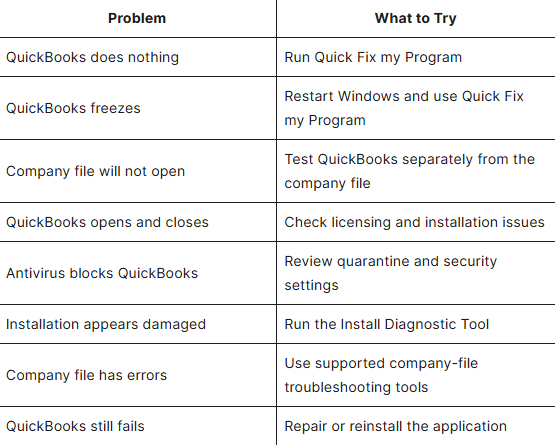
QuickBooks Not Working After Update Troubleshooting Checklist
Conclusion
QuickBooks not working after update can be caused by application files, licensing information, Windows components, security software, installation problems, or company-file issues. The most effective approach is to identify the source before making major changes.
Start with basic troubleshooting such as restarting Windows and running Quick Fix my Program. If that does not help, determine whether the issue affects QuickBooks itself or only your company file. You can then move to installation diagnostics, Windows component repairs, company-file troubleshooting, or reinstallation when appropriate.
Always protect your accounting data by maintaining current backups before performing significant troubleshooting or repair procedures.
Frequently Asked Questions
Why is QuickBooks not working after an update?
QuickBooks may stop working after an update because of damaged program files, installation problems, licensing information, Windows components, antivirus interference, or compatibility issues.
Why won't QuickBooks open after the latest update?
If QuickBooks will not open after an update, start by restarting Windows and running Quick Fix my Program through QuickBooks Tool Hub. If the problem continues, investigate installation, licensing, security, and Windows-related issues.
How do I fix QuickBooks not responding after an update?
Close QuickBooks, restart your computer, and run Quick Fix my Program. If QuickBooks remains unresponsive, use the appropriate diagnostic and installation troubleshooting tools.
Why does QuickBooks open and then close after an update?
QuickBooks can open and close because of licensing problems, damaged program files, antivirus interference, Windows component issues, or installation conflicts. The cause needs to be identified before choosing a repair method.
Can a QuickBooks update damage my company file?
An update does not automatically mean that your company file is damaged. If QuickBooks opens but one particular company file does not, troubleshoot the company file separately from the application.
What should I do if QuickBooks Desktop won't open after an update?
Start with a computer restart and Quick Fix my Program. Then test whether QuickBooks can open without loading your company file. If the application still fails, continue with installation diagnostics and repair steps.
How do I repair QuickBooks after an update?
You can start with Quick Fix my Program and then use the QuickBooks Install Diagnostic Tool for installation-related problems. Windows application repair or reinstalling QuickBooks may be considered if earlier steps fail.
Why is QuickBooks freezing after an update?
QuickBooks may freeze because of damaged program components, background processes, security software conflicts, Windows issues, or installation problems. Running Quick Fix my Program is a useful first troubleshooting step.
Should I reinstall QuickBooks if it stops working after an update?
Not necessarily. Reinstallation should generally be considered after simpler troubleshooting and diagnostic methods have failed. Keep your company files and backups secure before reinstalling.
Can QuickBooks Tool Hub fix QuickBooks after an update?
QuickBooks Tool Hub provides several troubleshooting utilities that can help with program, installation, and company-file issues. The appropriate tool depends on the specific problem.
Can QuickBooks File Doctor fix QuickBooks after an update?
QuickBooks File Doctor is intended for supported company-file and network-related problems. If the QuickBooks application itself will not start, other program or installation troubleshooting methods may be more appropriate.
How can I prevent QuickBooks from having problems after future updates?
Back up your company file, keep Windows and QuickBooks supported, schedule updates during low-activity periods, avoid interrupting installations, and test QuickBooks after an update before resuming normal accounting work.