
QuickBooks Connectivity Issues: Causes, Error Codes, and 10 Proven Troubleshooting Methods
Troubleshoot QuickBooks connection failures, multi-user network errors, bank feed interruptions, firewall restrictions, Web Connector problems, and server communication issues with practical solutions for Desktop and Online users.
Introduction
QuickBooks connectivity issues can interrupt accounting work in ways that are not always easy to diagnose. A company file may stop opening in multi-user mode, bank transactions may fail to refresh, Payments pages may display blank screens, or QuickBooks Web Connector may suddenly show an Offline status.
Although these symptoms may look like internet problems, the underlying cause is not always the internet connection. QuickBooks depends on several components to communicate successfully, including browser settings, application permissions, Windows services, network configuration, authentication sessions, and external financial institution connections.
The most important troubleshooting decision is identifying which QuickBooks product and connection are affected. QuickBooks Desktop and QuickBooks Online use different connection mechanisms, so they require different troubleshooting approaches.
This guide explains the major causes of QuickBooks connectivity problems, the error codes commonly associated with them, and practical ways to restore normal operations without making unnecessary changes to company data.
What Are QuickBooks Connectivity Issues?
QuickBooks connectivity issues occur when the software cannot establish or maintain communication with a required service, computer, application, or financial institution.
The failure can happen at several levels:
- Internet connectivity: QuickBooks cannot reach an online service.
- Browser connectivity: Browser settings or stored session data interfere with QuickBooks Online.
- Network connectivity: A workstation cannot communicate with the computer hosting a company file.
- Firewall connectivity: Security rules block required QuickBooks processes or network traffic.
- Bank connectivity: QuickBooks cannot exchange information with a financial institution.
- Application connectivity: QuickBooks Web Connector or another integrated application cannot complete its connection.
Identifying the affected layer is more useful than repeatedly restarting the router or reinstalling QuickBooks.
Common Symptoms of QuickBooks Connection Problems
The symptoms often indicate where the connection is failing.
Symptom | Possible cause |
Company file will not open in multi-user mode | Hosting, firewall, or network problem |
QuickBooks displays Error H202 | Workstation cannot communicate with the host |
Bank transactions will not refresh | Bank authorization or feed connection issue |
Payments page displays a blank screen | Browser or online-service communication issue |
Web Connector shows Offline | Authentication, application, or connection failure |
QuickBooks repeatedly disconnects | Network instability or security restrictions |
One workstation cannot access the company file | Local firewall, permissions, or network configuration |
QuickBooks Online will not load properly | Browser session, cache, or service availability issue |
A single symptom can have multiple causes. Use the exact error message and the circumstances in which it appears to narrow down the problem.
Why Do QuickBooks Connectivity Problems Occur?
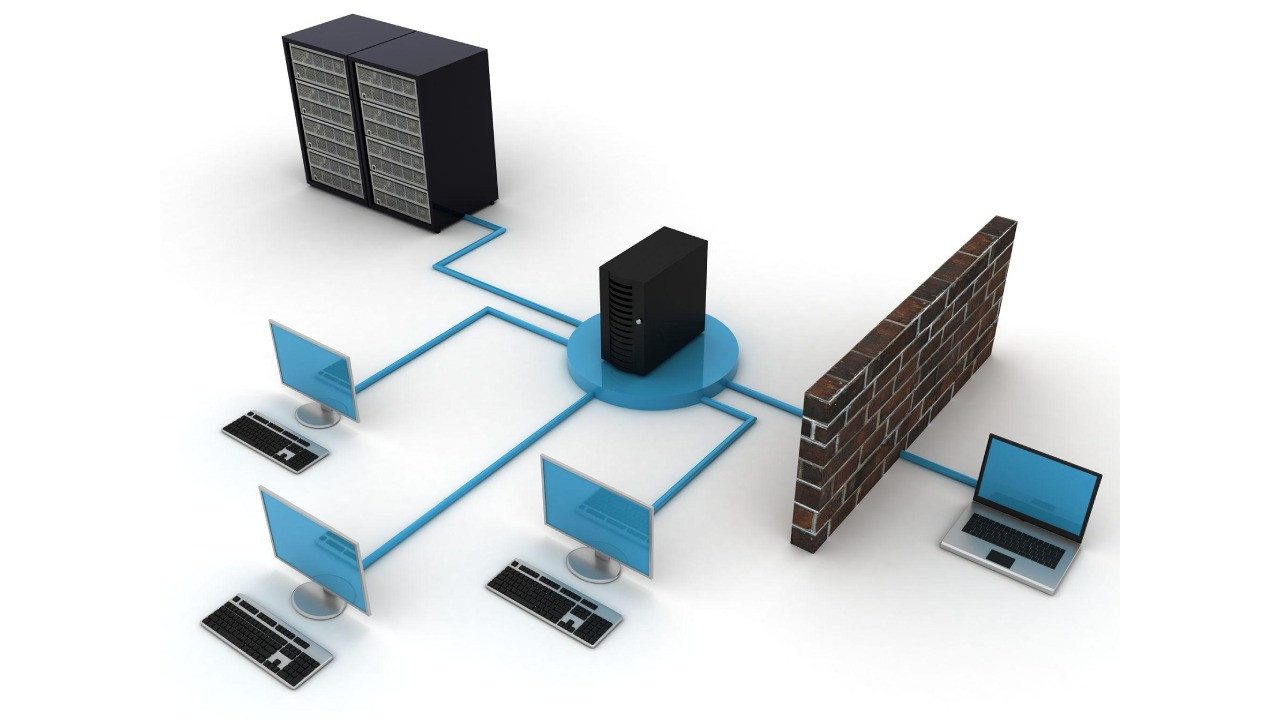
1. Incorrect Firewall or Antivirus Permissions
Windows Firewall and third-party security applications control which programs can communicate across a network. A rule change, security update, or incorrect network profile may block QuickBooks processes.
This can affect company-file hosting, database communication, updates, and other connected features.
2. Database Server Manager ProblemsQuickBooks Desktop multi-user environments rely on Database Server Manager to help workstations access company files stored on a server.
If the required service is stopped, the company-file folder is not configured correctly, or hosting settings are incorrect, workstations may fail to connect.
3. Browser Cache and Session ConflictsQuickBooks Online uses a web browser for account access and many accounting operations. Old cookies, cached data, or incompatible extensions can interfere with authentication and page loading.
4. Bank-Side Authorization ChangesBank feeds depend on an active connection between QuickBooks and the financial institution. Password changes, multifactor authentication, security alerts, or changes to the bank's connection process may interrupt transaction downloads.
5. Unstable Network ConfigurationDNS problems, interrupted Wi-Fi, incorrect server names, VPN configurations, and network profile changes can prevent QuickBooks from reaching the intended destination.
6. Outdated Software or Integration ComponentsAn outdated QuickBooks release or an incompatible integration component may cause connection failures. This is particularly relevant when the problem begins after a software or Windows update.
10 Ways to Fix QuickBooks Connectivity Issues
Fix 1: Check Your Internet and Network Connection
First, establish whether the issue affects QuickBooks alone or other applications as well.
- Open a trusted website in your browser.
- Check whether other online applications are working.
- Restart your router if the connection is unstable.
- Reconnect to your business network.
- If possible, test QuickBooks using another reliable connection.
- Check whether a VPN or proxy is affecting the connection.
For multi-user Desktop environments, verify that the workstation and server are connected to the same intended business network.
If other applications also lose connectivity, investigate the network before changing QuickBooks settings.
Fix 2: Check QuickBooks Hosting Settings
Incorrect hosting configuration can cause multi-user connectivity problems.
On the computer intended to host the company file:
- Open QuickBooks Desktop.
- Select File → Utilities.
- Review the available hosting option.
- If Host Multi-User Access appears, select it to enable hosting.
- Confirm that the company file is stored in the intended shared location.
On workstations:
- Open QuickBooks Desktop.
- Select File → Utilities.
- If Stop Hosting Multi-User Access appears, select it to disable hosting on that workstation.
- Repeat the check on other workstations.
In a typical self-hosted setup, the server hosts the company file while workstations access it. Avoid enabling hosting on every computer.
Fix 3: Run QuickBooks Database Server Manager
Database Server Manager helps workstations communicate with company files hosted on a server.
- Go to the server computer.
- Close QuickBooks Desktop.
- Open QuickBooks Tool Hub.
- Select Network Issues.
- Open QuickBooks Database Server Manager.
- Browse to the folder containing your company file if necessary.
- Select Start Scan.
- Allow the scan to complete.
- Reopen QuickBooks on an affected workstation.
- Test multi-user access.
If the scan does not resolve the issue, inspect the relevant Windows services, hosting settings, and firewall permissions.
Fix 4: Review Windows Firewall Permissions
A firewall may block QuickBooks even when the internet connection is working normally.
On Windows:
- Open the Start menu and search for Windows Defender Firewall.
- Open Advanced Settings.
- Review the inbound and outbound rules.
- Check whether the required QuickBooks programs and database services are allowed.
- Confirm that the rules apply to the appropriate network profile.
- Create or correct only the exceptions required by your installed QuickBooks version.
- Test the connection again.
Depending on the installation, relevant components may include:
- QBW32.exe
- QBDBMgrN.exe
- QBCFMonitorService.exe
- QBUpdate.exe
The exact executable paths and required ports depend on the QuickBooks version and configuration. Use the correct version-specific settings rather than copying arbitrary port numbers from another installation.
Do not permanently disable Windows Firewall or antivirus protection to make QuickBooks work.
Fix 5: Check Windows Network Profile and Sharing Settings
A computer connected to a business network may be configured with the wrong Windows network profile.
- Open Windows Settings.
- Select Network & Internet.
- Open the active network connection.
- Review whether the network profile is appropriate for your environment.
- Confirm that Network Discovery and File and Printer Sharing are configured according to your organization's security requirements.
For a trusted private business network, the Private profile may be appropriate. Do not switch a public or untrusted network to Private simply to bypass a connection error.
Fix 6: Clear Browser Cache for QuickBooks Online
If QuickBooks Online loads incorrectly, displays blank pages, or repeatedly returns to the login screen, browser data may be contributing to the problem.
- Close unnecessary browser tabs.
- Open your browser's privacy settings.
- Select the option to clear browsing data.
- Clear cached images and files.
- Clear relevant cookies if necessary.
- Restart the browser.
- Sign in to QuickBooks Online again.
You can also test the sign-in process in a private or incognito window.
If QuickBooks works in the private window, investigate browser extensions, stored cookies, and site-specific settings in your regular browser.
Fix 7: Refresh QuickBooks Online Bank Connections
When bank transactions stop downloading, the problem may involve authorization rather than general internet connectivity.
- Sign in to the financial institution's website directly.
- Check for security alerts, account notifications, or pending verification requests.
- Confirm that your bank login works.
- Return to QuickBooks Online.
- Open Bank transactions.
- Select the relevant account.
- Choose Update.
- Review any connection or authorization message.
If the bank has changed its authentication requirements, follow the instructions shown in QuickBooks to reconnect the account.
Do not repeatedly disconnect and reconnect a bank account without understanding the effect on existing transactions. Review downloaded and manually entered transactions carefully to avoid duplicates.
Fix 8: Check QuickBooks Web Connector
QuickBooks Web Connector allows supported third-party applications to exchange information with QuickBooks Desktop.
If Web Connector displays Offline or fails to complete an exchange:
- Confirm that QuickBooks Desktop is installed and available.
- Check whether the associated application is configured correctly.
- Open Web Connector and review its connection status.
- Verify that the required application authorization is still valid.
- Review any displayed error message.
- Confirm that the Windows account has the required permissions.
- Contact the integration provider if its authentication or application configuration has changed.
Do not remove application permissions or delete integration files without confirming how the connection is configured.
Fix 9: Update QuickBooks Desktop
An outdated installation can contribute to software compatibility and connection problems.
- Open QuickBooks Desktop.
- Select Help → Update QuickBooks Desktop.
- Choose Update Now.
- Select Get Updates.
- Wait for the download to finish.
- Close and reopen QuickBooks when prompted.
- Check whether the connection problem continues.
Before significant maintenance, create a current company-file backup. In multi-user environments, coordinate maintenance across the server and workstations.
Fix 10: Run QuickBooks File Doctor When Appropriate
If the connection problem is associated with a company file or multi-user network access, QuickBooks File Doctor may help investigate the issue.
- Open QuickBooks Tool Hub.
- Select Company File Issues.
- Choose Run QuickBooks File Doctor.
- Select the affected company file.
- Choose the appropriate network or company-file diagnostic option.
- Enter the administrator credentials if requested.
- Follow the instructions and review the results.
File Doctor is a diagnostic tool, not a universal solution. It cannot replace proper network configuration, firewall permissions, or a working Database Server Manager.
QuickBooks Connectivity Error Codes and Their Meaning
Certain QuickBooks error codes can help identify the type of connection failure.
Error code | What it generally indicates | Troubleshooting direction |
H202 | Workstation cannot communicate with the host computer | Check hosting, Database Server Manager, firewall, and network |
H101 | Hosting configuration problem | Verify which computer should host the company file |
H303 | Company file requires a different hosting configuration | Review server and workstation setup |
H505 | Multi-user hosting or server communication problem | Inspect hosting, services, and network configuration |
6000 series | Company-file access or opening problem; the exact suffix matters | Review the complete error, file location, permissions, and network |
6123 | Company-file connection or opening problem | Investigate file access, backup/restore context, and network conditions |
6175 | Database service or company-file access problem | Check Database Server Manager and relevant services |
6190 | Company-file access or version-related conflict may be involved | Verify file access and compatible product versions |
Licensing or registration data problem, not a general internet error | Investigate QuickBooks licensing components | |
15215 | Update or digital-signature verification problem may be involved | Review update installation and security configuration |
An error code should never be interpreted without its complete message and context. For example, not every 6000-series error has the same cause, and an H202 issue is not the same as a bank-feed connection failure.
QuickBooks Desktop vs. QuickBooks Online Connectivity
The two products depend on different connection mechanisms.
Feature | QuickBooks Desktop | QuickBooks Online |
Main environment | Installed Windows or Mac application | Web browser |
Multi-user connection | Host computer and network | Cloud-based account access |
Common problem areas | Firewall, hosting, database services | Browser, account session, service availability |
Bank feeds | Depends on supported Desktop banking features | Bank authorization and online connection |
Common troubleshooting | Hosting, services, firewall, updates | Cache, cookies, bank reconnection |
Integration issues | Web Connector and application configuration | Connected apps and authorization |
This distinction is important. Clearing browser cache will not normally correct an H202 hosting problem, while changing Database Server Manager settings will not resolve an expired QuickBooks Online bank authorization.
A Practical Example: When Only One Workstation Cannot Connect
Consider a business with one server and several workstations. Most employees can open the company file in multi-user mode, but one computer repeatedly loses access.
In this situation, changing the entire server configuration may be unnecessary. Start by checking the affected workstation's network connection, firewall rules, network profile, and access permissions.
If other workstations continue working normally, the evidence points toward a problem specific to that computer or its connection. Testing one layer at a time helps isolate the cause without disrupting everyone else's accounting work.
This is a troubleshooting example, not a claim that every single-workstation failure has the same cause.
How to Prevent Future QuickBooks Connectivity Issues
Good maintenance practices can reduce recurring connection problems.
- Keep QuickBooks Desktop updated within its supported product environment.
- Maintain compatible Database Server Manager components.
- Review firewall rules after Windows or security-software updates.
- Keep server and workstation network settings consistent.
- Use appropriate folder permissions for shared company files.
- Keep browser software updated for QuickBooks Online.
- Review bank authorization notifications promptly.
- Maintain backups of company files.
- Document network, server, and application changes.
- Test multi-user access after planned maintenance.
When Should You Seek Technical Assistance?
Some connection problems require an assessment of the entire environment. Consider professional IT assistance when:
- Multiple workstations cannot reach the host computer.
- Database Server Manager repeatedly stops.
- Firewall rules or network ports require administrator changes.
- QuickBooks disconnects after every Windows restart.
- Bank connections repeatedly fail after reauthorization.
- Web Connector cannot authenticate with an integrated application.
- The company uses a VPN, domain, virtual server, or third-party hosting environment.
- The issue continues after the relevant basic troubleshooting steps.
Before requesting assistance, record the QuickBooks product and version, complete error message, affected computer, and the steps that reproduce the problem.
Frequently Asked Questions About QuickBooks Connectivity Issues
1. Why is QuickBooks not connecting to the server?
The workstation may be unable to communicate with the host because of incorrect hosting settings, firewall restrictions, stopped database services, network problems, or folder permissions. Identify whether the issue affects one workstation or every computer.
2. What is the most common cause of QuickBooks Error H202?H202 generally indicates that a workstation cannot communicate with the computer hosting the company file. Check hosting configuration, Database Server Manager, Windows services, firewall permissions, and network connectivity.
3. Can Windows Firewall block QuickBooks?Yes. Firewall rules can block QuickBooks executables and database communication. Review the required inbound and outbound permissions for your installed version instead of disabling the firewall.
4. Why are QuickBooks Online bank feeds not updating?The bank connection may require reauthorization, the financial institution may have a temporary service issue, or browser session data may be interfering. Check the bank's website, review account notifications, and refresh the connection in QuickBooks.
5. Why does QuickBooks Web Connector show Offline?Possible causes include an unavailable application, invalid authorization, an authentication problem, or incorrect integration settings. Review the displayed error and confirm that the associated application is configured correctly.
6. Can a Windows update cause QuickBooks connection problems?Yes. A Windows update may change network settings or affect firewall rules. Check the active network profile, required application permissions, and relevant services after the update.
7. Will reinstalling QuickBooks fix connectivity problems?Not necessarily. Reinstallation will not correct a blocked network port, incorrect hosting configuration, bank-side authorization issue, or faulty router. Diagnose the affected connection layer before reinstalling the application.
8. Why does QuickBooks work on one computer but not another?The affected computer may have different firewall rules, network settings, permissions, browser data, or application configuration. Compare its settings with a working computer to narrow down the difference.
9. Is QuickBooks connectivity trouble always an internet problem?No. Desktop multi-user access can fail even when the internet works normally because it relies on communication between computers on the local network. Online banking and authentication issues involve different connections.
10. How can I prevent QuickBooks connection errors?Maintain compatible software, review firewall permissions, keep network settings appropriate, monitor bank authorization, maintain company-file backups, and test connections after planned system changes.
Conclusion
QuickBooks connectivity issues are not one single problem. They can originate in browser sessions, bank authorization, application permissions, Windows Firewall, network configuration, or multi-user hosting services.
For QuickBooks Desktop, begin with the host computer, Database Server Manager, firewall rules, and network settings. For QuickBooks Online, investigate browser data, account authentication, bank authorization, and service availability.
The most reliable troubleshooting approach is to identify the failing connection, verify the relevant settings, and change one thing at a time. Avoid unnecessary reinstallations, broad firewall changes, or company-file modifications before establishing the actual cause.
Need assistance with persistent QuickBooks connectivity issues?
Contact Data Service Team to inquire about available troubleshooting assistance.
Website: https://dataserviceteam.com/
Phone: +1-(888)-718-7888